Skip to content
  Get the best 3-year deal NOW →
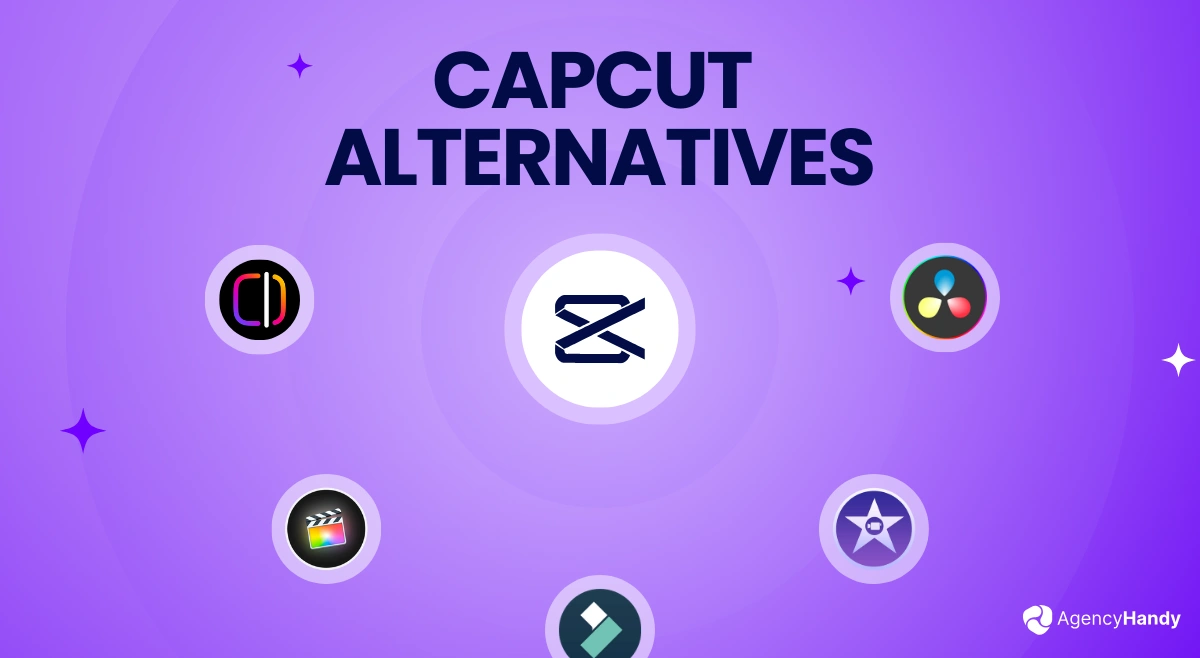



CapCut used to be the go-to superior video editing software for beginners. But now that it’s a freemium, people are settling down for CapCut alternatives. Mobile editors are moving to InShot and Edits. Desktop users are figuring out DaVinci Resolve. Web-based folks are making Clipchamp work.
Are these perfect? No. Do they have every single CapCut feature? Also no. But for beginners and people who won’t pay $90/year, they’re good enough. This guide breaks down the alternatives by platform—what works, what doesn’t, and what you’re giving up. Pick one and get back to editing.
Why People Are Looking for CapCut Alternatives
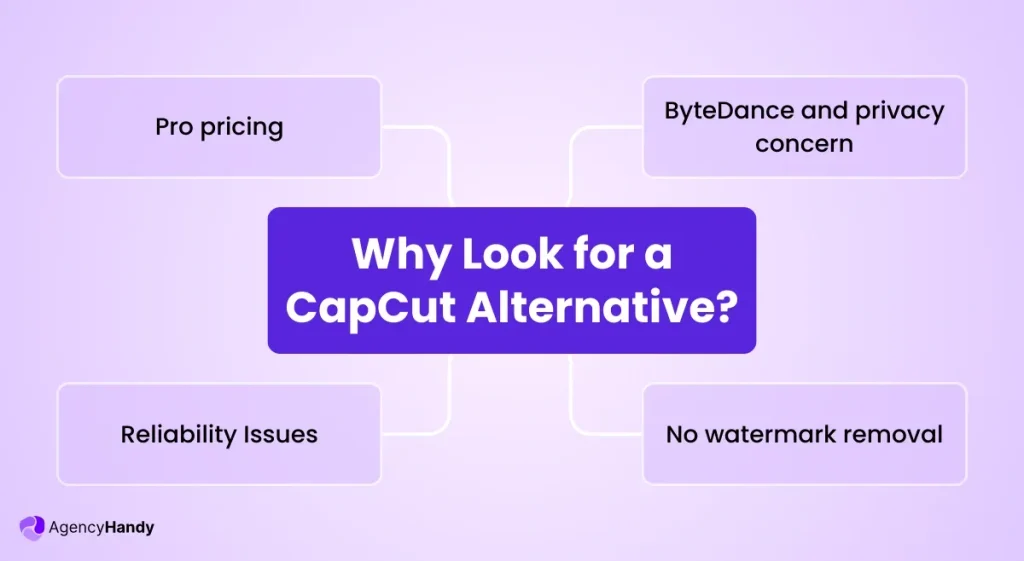
CapCut wasn’t always the problem. It used to be the solution—free, powerful, and simple. But things changed, and now thousands of creators are looking for exits. Here’s what went wrong.
The Pricing Bait-and-Switch
Remember when CapCut’s best features were free? Then they weren’t.
What changed:
- Auto captions: Free → Pro only
- Background removal: Free → Pro only
- Noise reduction: Free → Pro only
- Advanced effects: Free → Pro only
The price itself isn’t terrible—$9.99/month or $90/year. But it’s the method that stings. People built entire workflows around free features, then watched them disappear behind a paywall overnight.
Even worse? Some AI features still use credits after you’ve paid for Pro. You’re paying monthly and still hitting limits.
As one Reddit user put it: “I miss the old capcut but now they’re a bunch of money hungry scum.”
ByteDance and Privacy Concerns
CapCut is owned by ByteDance—the same company as TikTok. That’s become a problem.
Why it matters:
- Government bans and restrictions on ByteDance apps
- Questions about where your content actually goes
- Business and agency clients won’t accept the risk
- Terms of Service that grant CapCut broad rights to your content
CapCut’s June 2024 ToS update allows them to:
- Use and modify your videos without permission
- Monetize your content without paying you
- Sublicense your work to third parties
- Remove your content without explanation
For casual TikTok creators, maybe that’s fine. For professionals? It’s a dealbreaker.
Server Downtime and Reliability Issues
When CapCut’s servers went down in early 2024, creators panicked. Projects got stuck mid-edit. Exports failed. One Reddit user said: “My 4 videos I had half edited are stuck in my edit bay and CapCut won’t let me export them.”
The reliability problems:
- No offline mode when servers crash
- Projects trapped in the cloud
- Daily creators can’t afford downtime
- No warning before outages
If you’re posting content every day for work, you can’t build your business on a tool that might just disappear.
Feature Lock-In Without Alternatives
Here’s what people actually miss when they try to leave CapCut:
Most-wanted features:
- Auto captions (mentioned in nearly every Reddit thread)
- TikTok sounds integration
- Templates for non-technical users
- One-click noise reduction
- Color correction tools
- Background removal
Quick Comparison Table of Top CapCut Alternatives
Here’s a fast overview of all the CapCut alternatives covered in this guide. Use this to quickly narrow down which tools match your needs, then read the detailed breakdown below.
| Tool | Free/Paid | Platform | Best For | Pricing Model | Standout Feature |
| DaVinci Resolve | Free (Studio paid) | Desktop: Win, Mac, Linux; iPad | Professional editing on a budget | Free or $295 one-time | Professional color grading, no watermarks |
| iMovie | Free | Mac, iOS only | Apple users wanting simplicity | Free with Apple devices | Zero learning curve for Apple users |
| OpenShot | Free | Desktop: Win, Mac, Linux | Budget-conscious desktop users | Free forever | Completely open source, no catches |
| Clipchamp | Free tier available | Web, Windows, iOS, Android | Microsoft 365 users, beginners | Free or $11.99/month | Browser-based, no installation needed |
| InShot | Free (Pro available) | iOS, Android | Mobile creators on a budget | Free or $19.99 one-time | One-time payment, no subscription trap |
| Edits | Free | iOS, Android | Instagram-focused creators | Free (for now) | Direct Instagram integration |
| Filmora | Free trial, paid | Desktop: Win, Mac; Mobile: iOS, Android | Users wanting CapCut-like interface | $49.99/year or $79.99 one-time | Nearly identical to CapCut’s interface |
| Adobe Premiere Pro | Paid only | Desktop: Win, Mac | Professional content creators | $22.99/month subscription | Industry standard, constant updates |
| Final Cut Pro | Paid only | Mac only; iPad available | Mac users going professional | $299.99 one-time (Mac) | Optimized for Apple hardware |
Quick decision guide:
- Free: DaVinci Resolve, iMovie, OpenShot, Clipchamp
- Editing on phone: InShot, Edits, iMovie (iOS)
- Done with subscriptions: InShot ($20), Final Cut Pro ($300), Filmora perpetual ($80)
- Want CapCut without ByteDance: Filmora, Edits
- Ready to go pro: DaVinci Resolve, Premiere Pro, Final Cut Pro
Free CapCut Alternatives
If you use the free version of CapCut, and are looking for a CapCut alternative free of subscription traps, you can pick any of the following as per it meets your workflow.
1. DaVinci Resolve
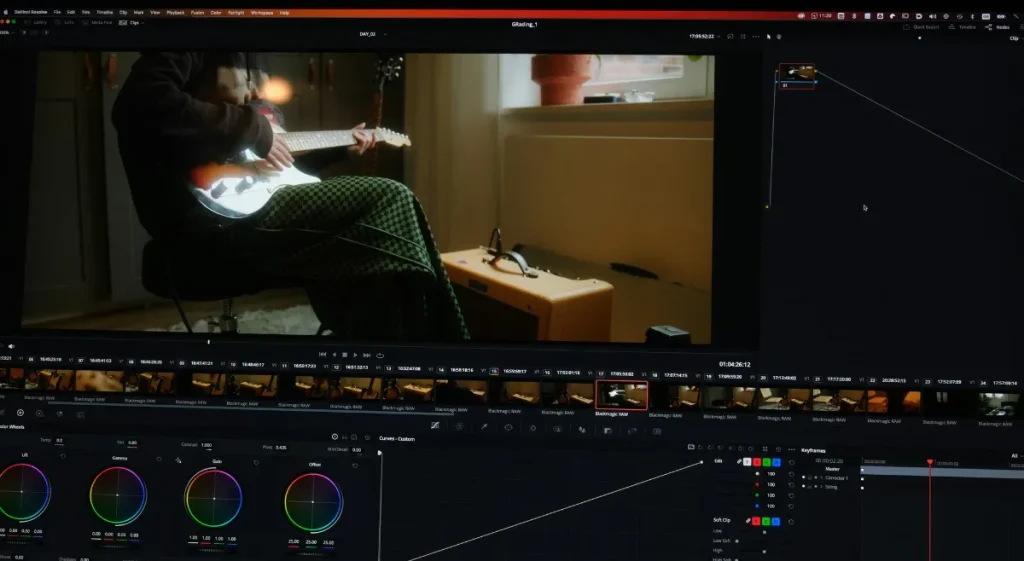
If you’re serious about video editing and willing to climb a learning curve, DaVinci is the most powerful free CapCut alternative for PC with watermarks and no limitations. It’s what professional editors use for Hollywood films, but the free version is surprisingly complete.
The interface looks intimidating at first, but once you get past that initial “where do I even start” phase, you realize it’s actually logical. It’s heavy on system resources though, so your laptop needs to be decent.
Available On
- Desktop: Windows, Mac, Linux
- Mobile: iPad only
- Web: No
Key Features
- Professional color grading tools
- Multi-track timeline editing
- AI-powered features in Studio version
- Text-based editing option
- Advanced audio mixing
- Motion graphics and effects
Why It’s a Good CapCut Alternative
It’s got every feature CapCut has and about a hundred more. The free version gives you unlimited captions, noise reduction, and color correction without any watermarks or time limits.
If you’ve outgrown CapCut’s capabilities or just don’t want to deal with ByteDance, this is where most people migrate to.
Best If: You’re outgrowing CapCut and ready to learn professional tools that could actually turn into a career skill.
What You’re Giving Up: Simple interface, easy learning curve, instant gratification. DaVinci makes you work for it.
Pros
- Free version is genuinely powerful
- No watermarks or export limits
- Professional-grade color grading available
- One-time payment for Studio version
- Active community with tons tutorials
- Actually used by real professionals
Cons
- Steep learning curve initially
- Requires powerful computer
Pricing
- Free: Full-featured, no watermark
- Studio: $295 one-time payment
2. iMovie
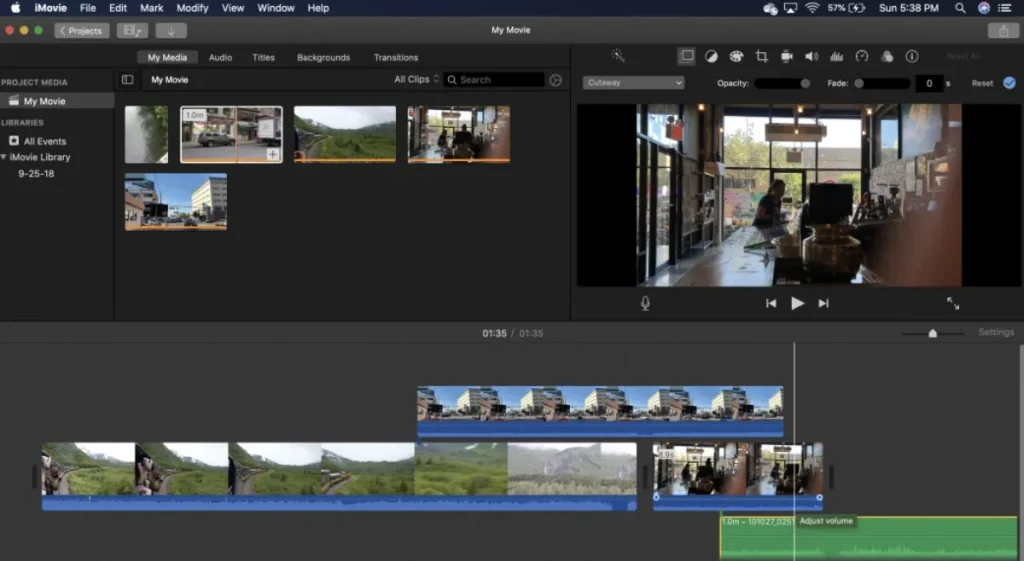
If you have a Mac or iPhone, iMovie is already sitting there waiting for you. It’s free, it’s simple, and it’s actually good for basic editing. Apple designed it so your grandma could figure it out, which means you definitely can.
It won’t do fancy AI stuff or give you a million effects, but it handles the fundamentals smoothly. The biggest downside is it’s locked to Apple devices, so don’t get too attached if you might switch to Android or Windows later.
Available On
- Desktop: Mac only
- Mobile: iOS only
- Web: No
Key Features
- Templates and themes included
- Green screen effects
- Audio editing tools
- Direct export to social media
- 4K video support
- Magic Movie auto-editing
Why It’s a Good CapCut Alternative
It’s completely free, has no ByteDance ties, and works smoothly on Apple devices. If you’re making straightforward content without needing advanced AI features, iMovie handles it without any subscription fees or pro versions.
It’s simple enough that you won’t get lost in menus. One Reddit user noted it’s perfect for basic edits when you just need something that works.
Best If: You want CapCut-level simplicity without the drama and you’re already in the Apple ecosystem.
What You’re Giving Up: AI features, Windows/Android compatibility, advanced effects library, templates variety.
Pros
- Completely free with Apple devices
- Clean and intuitive interface
- No watermarks ever
- Seamless Apple ecosystem integration
- 4K export included
- Regular updates from Apple
Cons
- Apple devices only
- Limited advanced features
Pricing
- Free: Included with all Apple devices
3. OpenShot
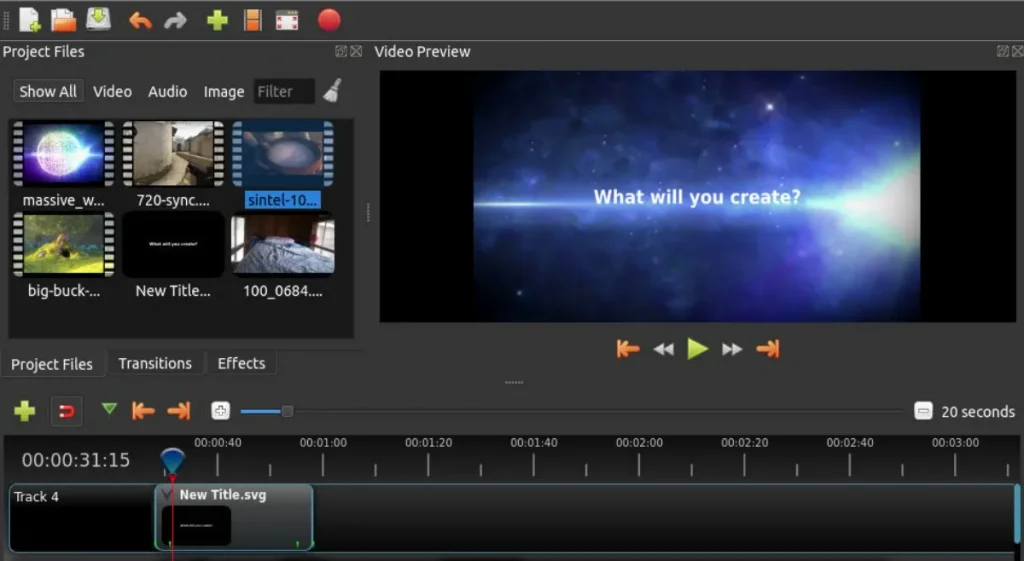
OpenShot is a completely free CapCut alternative that costs nothing forever. It’s open source, which means it’s built by volunteers who actually care about making good software. It won’t win any beauty contests, and the interface feels a bit clunky compared to modern editors, but it works.
Everything is free forever with no catches, no watermarks, no pro versions. It crashes sometimes, not gonna lie, so save your work often. But if you want a completely free desktop editor and don’t mind some rough edges, it’s solid.
Available On
- Desktop: Windows, Mac, Linux
- Mobile: No
- Web: No
Key Features
- Unlimited tracks and layers
- Title templates included
- Video effects and transitions
- Audio waveform visualization
- 3D animated titles
- Cross-platform support
Why It’s a Good CapCut Alternative
It’s completely free with no strings attached, no ByteDance connection, and no features locked behind paywalls. If you’re broke or just refuse to pay subscriptions, OpenShot gives you legitimate editing capabilities. It’s not as polished or feature-rich as CapCut, but it’s honest software that won’t suddenly charge you.
Best If: You need something cheaper and don’t mind rough edges or the occasional crash.
What You’re Giving Up: Polish, stability, AI features, modern interface design, mobile editing.
Pros
- Completely free forever
- Open source, no shady stuff
- Works on Linux too
- No watermarks or limits
- Regular community updates
- Full timeline editing
Cons
- Can be unstable
- No mobile version
Pricing
- Free: Forever, no watermark
4. Clipchamp
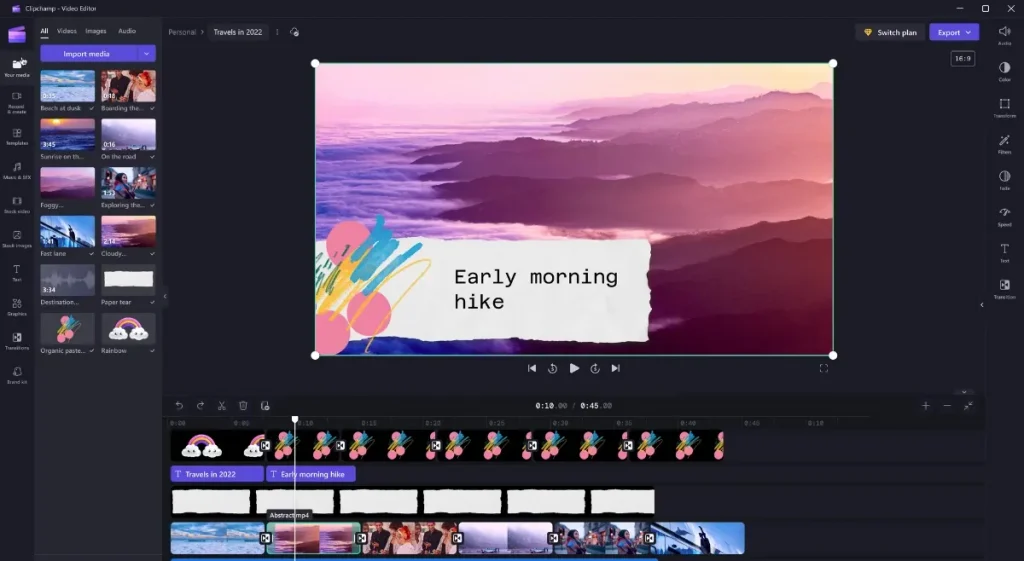
Microsoft bought Clipchamp and baked it into Windows, which means if you have Windows 11, you already have it. It’s browser-based, so it works on basically any computer without installing anything heavy.
The interface is dead simple, almost too simple if you’re used to more control. Clipchamp offers a strong CapCut alternative with templates for various social media formats. The auto captions work pretty well though.
Available On
- Desktop: Windows, Mac (via browser)
- Mobile: iOS, Android (limited)
- Web: Yes, fully functional
Key Features
- Browser-based editing
- Auto captions and transcriptions
- Templates and stock library
- Screen and camera recording
- Green screen effects
- Direct social media export
Why It’s a Good CapCut Alternative
It runs in your browser, so there’s zero ByteDance connection and no heavy software to install. The free version actually works for most basic needs, and if you have Microsoft 365, premium is already included. It’s nowhere near as powerful as CapCut, but it’s simple and gets you editing fast.
Best If: You want CapCut without ByteDance and already have Microsoft 365, or you need something that works in a browser.
What You’re Giving Up: Advanced features, offline editing, higher resolution on free tier, some AI capabilities.
Pros
- Completely browser-based, no installation
- Included with Microsoft 365
- Works on any computer
- Auto captions included
- Free version is functional
- No ByteDance privacy concerns
Cons
- Requires internet connection
- Free version has watermark
- Basic feature set
Pricing
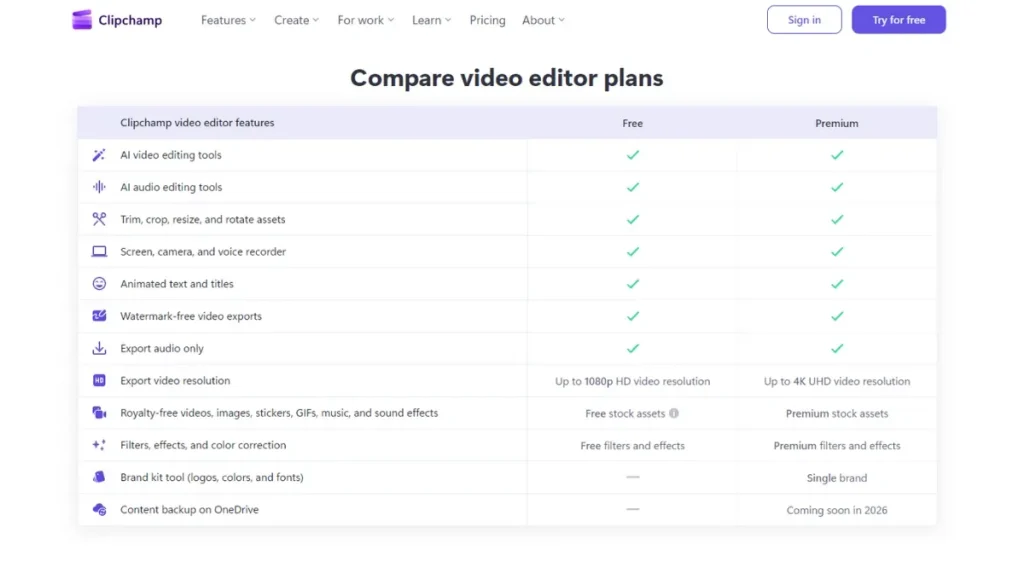
- Free: With watermark
- Premium: $11.99/month (or included with Microsoft 365)
CapCut Alternatives for Android & iPhone
CapCut made its name as a mobile editor, so if you’re editing on your phone, you need something that works smoothly on a smaller screen. Whether you need a CapCut alternative for iPhone or Android, following editors will keep things simple and work as an excellent mobile editor.
5. InShot
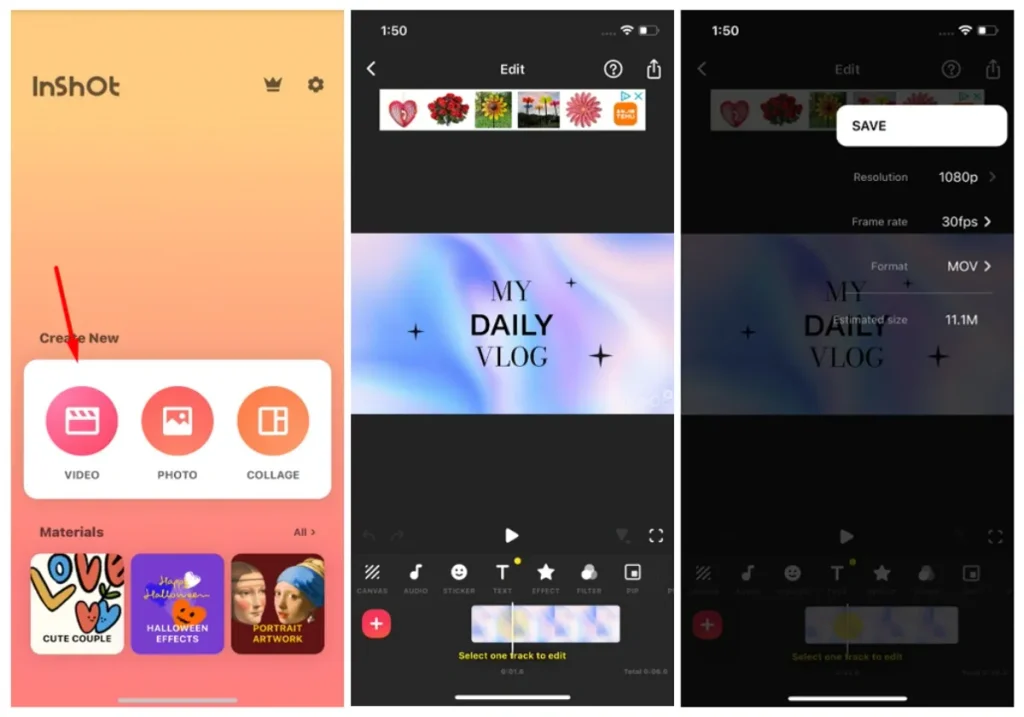
InShot works as a solid CapCut alternative for Android users who need quick mobile edits without the drama. It’s been around forever, and it just works. Twenty bucks gets you the pro version for life, which is honestly a steal compared to most apps nickel-and-diming you monthly.
The interface is stupid simple, perfect for Instagram and TikTok content. It’s not going to replace desktop editing, but that’s not what it’s trying to do.
Available On
- Desktop: No
- Mobile: iOS, Android only
- Web: No
Key Features
- Quick trim and split tools
- Music and sound effects library
- Text and sticker overlays
- Speed controls and transitions
- Collage video maker
- No ads after purchase
Why It’s a Good CapCut Alternative
It does everything most people actually use CapCut for, minus the AI bells and whistles. If you’re making social media content on your phone and don’t need advanced features, InShot gets the job done.
Reddit users consistently mention InShot and YouCut as the top mobile alternatives, with multiple people praising the “$20 then it’s yours forever” approach.
Best If: You want mobile editing that’s simple and affordable.
What You’re Giving Up: Advanced AI features, desktop version, some of CapCut’s automated tools, cloud sync.
Pros
- One-time payment, yours forever
- Simple and fast interface
- Works great on older phones
- Regular updates included
- No ByteDance connection
- Decent free version available
Cons
- Limited advanced features
- Ads in free version
Pricing
- Free: With ads and watermark
- Pro: $19.99 one-time payment
6. Edits (Instagram)
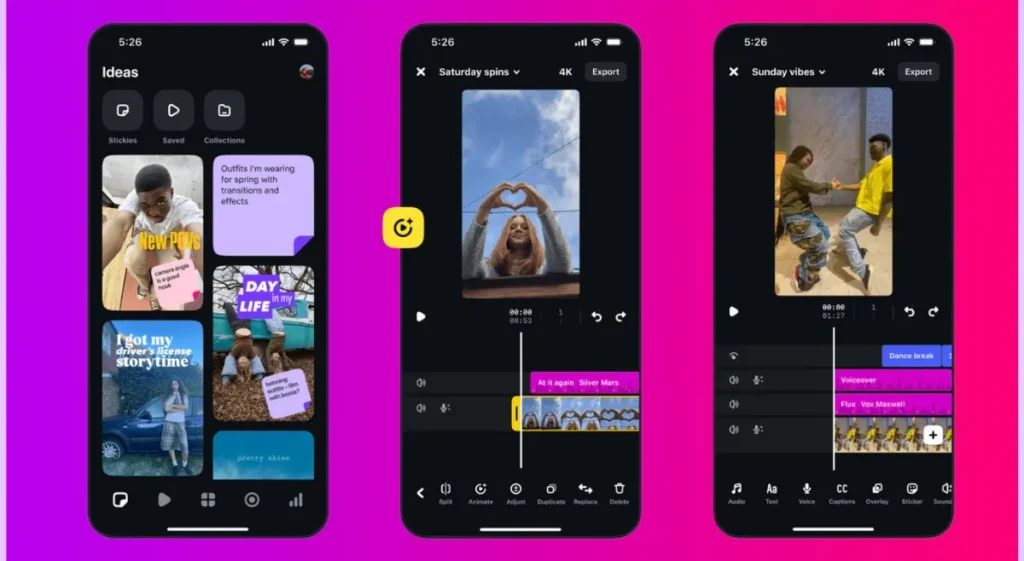
Instagram just launched Edits as their answer to CapCut, and the timing is pretty obvious. It’s still new and missing features, but Meta is updating it constantly. The app is clean, fast, and completely free right now.
Since it’s from Instagram, the export process to Reels is smooth. It feels like Instagram looked at exactly what CapCut does and said “we can do that too.” Whether it’ll stay free once they’ve pulled users away from CapCut is anyone’s guess.
Available On
- Desktop: No
- Mobile: iOS, Android
- Web: No
Key Features
- Instagram Reels integration
- Basic editing tools
- Trending audio library
- Text and sticker tools
- Speed controls
- Filters and effects
Why It’s a Good CapCut Alternative
It’s Meta’s direct response to CapCut, built specifically for social media creators. No ByteDance privacy concerns, and if you’re primarily posting to Instagram anyway, the workflow is smooth.
Best If: You just want CapCut without ByteDance and post mainly to Instagram. You’re okay with a newer app that’s still developing.
What You’re Giving Up: Features (it’s brand new), desktop editing, templates library, some advanced tools CapCut has.
Pros
- Completely free right now
- Direct Instagram integration works smoothly
- Regular feature updates weekly
- No ByteDance connection
- Built for social media content
- Clean modern interface
Cons
- Still missing many features
- Mobile only currently
- Tied to Meta ecosystem
Pricing
- Free: Currently everything is free
CapCut Alternatives for PC (Windows & Mac)
If you need a CapCut alternative for PC, these desktop editors range from beginner-friendly to industry-standard professional tools. And unlike CapCut, several offer one-time purchases instead of endless subscriptions.
7. Filmora
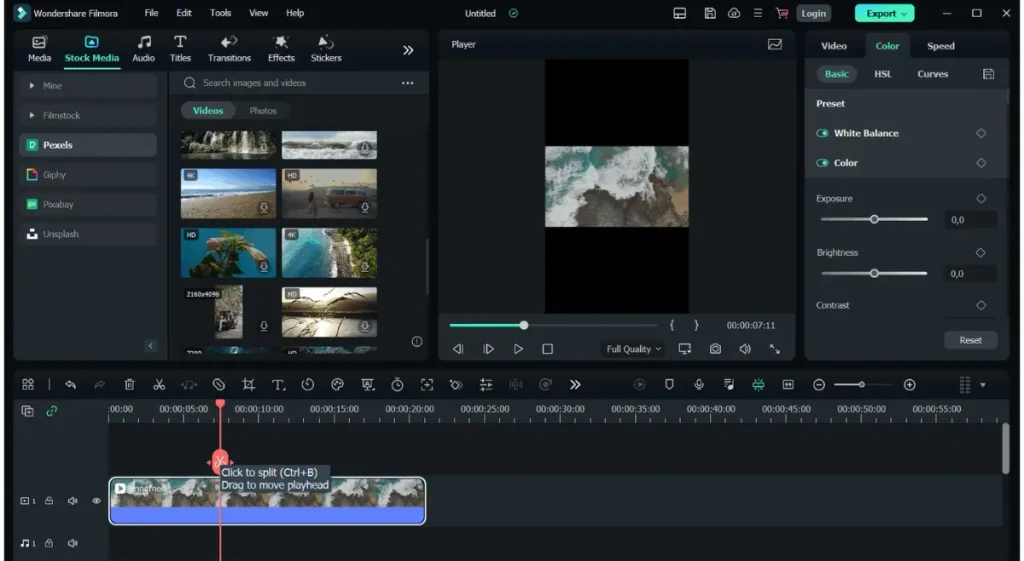
Filmora feels like CapCut’s desktop cousin. If you can navigate CapCut, you’ll figure out Filmora in about ten minutes. It sits in that sweet spot between beginner-friendly and actually capable.
The interface is clean, the effects library is huge, and it doesn’t demand a NASA computer to run. But, the annoying part is they use a credit system for AI features, so you’ll burn through credits fast if you lean on those tools.
Available On
- Desktop: Windows, Mac
- Mobile: iOS, Android (limited features)
- Web: No
Key Features
- Drag-and-drop editing interface
- Large effects and template library
- AI features with credit system
- Auto captions and transcription
- Screen recording built in
- Direct social media export
Why It’s a Good CapCut Alternative
Filmora is almost the same visually as CapCut on desktop. If you know how to use CapCut, then jumping to Filmora will be 95% the same experience. It has a perpetual license option, which means you can pay once and own it forever—no subscription required.
Best If: You just want CapCut without ByteDance—same feel, different company. You’re comfortable with the interface and don’t want to relearn everything.
What You’re Giving Up: Unlimited AI features (they cost credits), some of CapCut’s seamless TikTok integration.
Pros
- Nearly identical to CapCut interface
- Perpetual license option available
- Huge template and effects library
- Works on average computers
- Good customer support
- Regular feature updates
Cons
- AI features need credits
- Watermark on free version
- Mobile version limited
Pricing
- Free: With watermark
- Annual: $49.99/year
- Perpetual: $79.99 one-time
- Pro (unlimited AI): $109.99/year
8. Adobe Premiere Pro
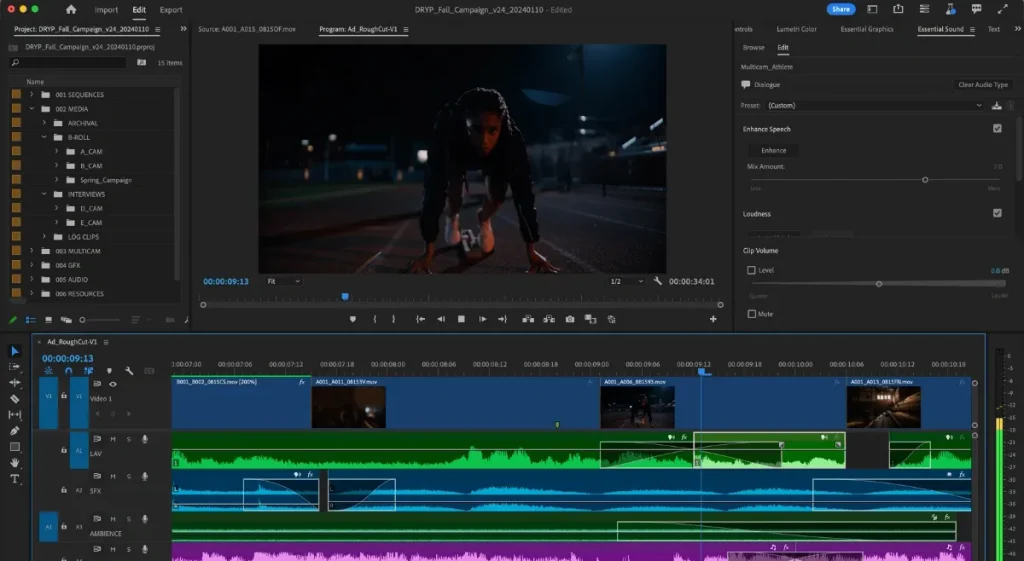
Premiere Pro is the industry standard, which means it’s both incredibly powerful and incredibly expensive. Adobe’s been adding AI features like crazy lately, and honestly, they’re pretty good.
The learning curve is real, but there are more tutorials for Premiere than you could watch in a lifetime. It’s overkill if you’re just making TikToks, but if you’re building a career in video editing, this is where you’ll end up eventually.
Available On
- Desktop: Windows, Mac
- Mobile: iOS, Android (Premiere Rush – simplified version)
- Web: Limited beta version
Key Features
- Text-based editing workflow
- AI-powered auto reframe
- Professional color correction
- Motion graphics templates
- Multi-cam editing support
- Seamless Adobe ecosystem integration
Why It’s a Good CapCut Alternative:
The new AI features compete directly with CapCut’s auto captions and effects. It’s expensive, but you’re paying for reliability and professional capabilities. Reddit users mention it’s “been on fire” lately with updates, though the $22/month price tag is a barrier.
Best If: You’re outgrowing CapCut anyway and building a video career. You need industry-standard tools that clients and employers recognize.
What You’re Giving Up: Simplicity, affordable pricing, the ability to edit quickly without planning.
Pros
- Industry standard for professionals
- Constant feature updates and improvements
- Integrates with entire Adobe suite
- Cloud storage and collaboration
- Auto captions work well
- Tons of learning resources
Cons
- Expensive monthly subscription
- Complex for beginners
- Needs powerful computer
- No perpetual license
Pricing:
- Premiere Pro: $22.99/month
- All Apps: $59.99/month
- Free trial: 7 days
9. Final Cut Pro
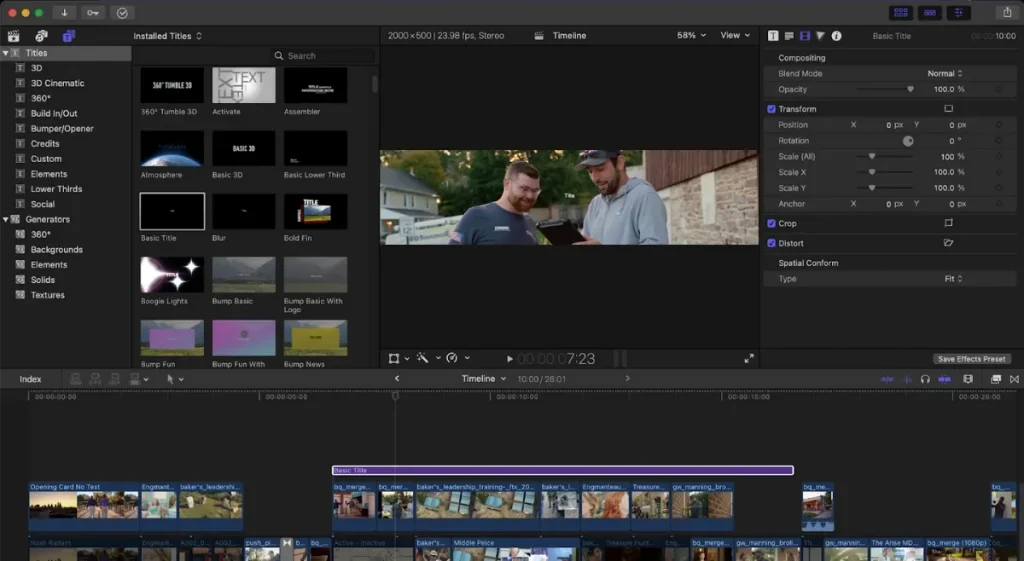
Final Cut Pro is Apple’s professional editor, and it’s legitimately excellent. It’s got this magnetic timeline that feels weird at first but then you can’t imagine editing without it. Everything is fast and smooth on Mac hardware because Apple optimized the hell out of it.
The $300 price tag hurts, but it’s one payment and done forever. If you’re on Mac and serious about editing, this is probably where you should be.
Available On
- Desktop: Mac only
- Mobile: iPad version available
- Web: No
Key Features
- Magnetic timeline editing
- Advanced color grading
- Motion graphics and effects
- Multicam editing support
- Object tracking
- 360-degree video editing
Why It’s a Good CapCut Alternative:
It’s the most powerful Mac-exclusive editor that doesn’t require a subscription. Recent updates added features that compete directly with CapCut’s AI tools. If you want professional results without ByteDance or monthly fees, and you’re already in the Apple ecosystem, this makes sense.
Best If: You can’t trust subscriptions anymore and you’re on Mac. You want professional tools with a one-time payment.
What You’re Giving Up: Windows compatibility, the ability to try it cheaply, cross-platform workflow.
Pros
- One-time purchase, no subscription
- Optimized perfectly for Mac hardware
- Professional-grade features included
- Regular major updates
- iPad version for mobile editing
- Magnetic timeline speeds workflow
Cons
- Mac only
- Expensive upfront cost
- Learning curve required
Pricing:
- Mac: $299.99 one-time
- iPad: $4.99/month or $49/year
- Free trial: 90 days
How to Actually Make the Switch
Switching editors feels like a pain, but it’s easier than dealing with CapCut’s problems long-term. Here’s how to make the transition without losing your mind or your projects.
If You Have Projects Stuck in CapCut
First priority: save what you can before things get worse.
Do this now:
- Export every project you have, even the unfinished ones
- Download your project files if CapCut lets you
- Screen record your edits if export fails (yes, really)
- Save any custom templates or presets you created
- Grab your frequently used assets and media
If CapCut’s servers are down or the app stops working, you’ll be glad you did this. One Reddit user lost four half-edited videos when servers crashed—don’t be that person.
Pick Based on Your Actual Workflow
Stop overthinking and match the tool to how you actually work.
Phone-only editing? Go with InShot, Edits, or iMovie if you’re on iOS. These are built for mobile and won’t frustrate you with desktop-focused interfaces crammed onto a small screen.
Desktop but want it simple? Try Filmora or Clipchamp. They’re straightforward enough that you won’t spend three days watching tutorials.
Ready to learn professional tools? Jump into DaVinci Resolve or save up for Premiere Pro or Final Cut Pro. The investment pays off if you’re serious.
Need browser access? Use VEED.IO or Clipchamp so you can edit from any computer without installing software.
Done with subscriptions? Pay once for InShot ($20), Final Cut Pro ($300), or Filmora perpetual license ($80) and never worry about monthly charges again.
Make the Transition Easier
Start small: Don’t try to recreate your most complex CapCut project on day one. Pick something simple—a 30-second clip, basic cuts, maybe some text. Get comfortable with the new interface before tackling bigger projects.
Use templates first: Most alternatives have templates that speed things up while you’re learning. They also show you what the tool can do without reading documentation.
Watch tutorials, then experiment: Don’t fall into tutorial hell. Watch enough to understand the basics, then just start editing. You’ll learn faster by doing.
Don’t recreate CapCut workflow exactly: Each tool has its own logic and shortcuts. Trying to force your old workflow into new software just frustrates you. Learn how the new tool wants you to work.
What to Look for in a CapCut Alternative
Not all video editors are created equal, and what works for someone else might be completely wrong for you. Here’s what actually matters when picking a CapCut replacement.
Match Your Actual Workflow
Forget the features list for a second. How do you actually edit? Do you edit on your phone during commutes, or at a desk with a proper monitor?
Are you making 15-second TikToks or 10-minute YouTube videos? Solo or with a team? For fun or for paying clients?
A mobile-first tool like InShot makes zero sense if you’re editing on a desktop all day. DaVinci Resolve is overkill if you’re just trimming clips for Instagram Stories.
Focus on Features You’ll Actually Use
Don’t get distracted by 47-point feature lists. Focus on what you use every day: auto captions, templates, export quality, and learning curve. If a tool is missing the one feature you absolutely need, it doesn’t matter how great everything else is.
Check whether auto captions are free, credit-based, or subscription-only. See if templates actually exist and whether they’re any good.
Know what resolution you can export without watermarks. And be honest about whether you’re willing to watch tutorials or if you need something that just works immediately.
One-Time Payment vs. Subscription
If you’re paying CapCut $90/year, that’s $270 over three years. Suddenly a $300 one-time purchase for Final Cut Pro starts looking reasonable.
Subscriptions give you updates but cost adds up. One-time payments cost more upfront but you own it forever. Do the math based on how long you’ll actually use the tool.
Platform Matters More Than You Think
Where you edit determines what you can use. Mobile only? You need InShot, Edits, or iMovie for iOS.
Desktop only? Filmora, DaVinci Resolve, Premiere Pro, or Final Cut Pro work.
Need both mobile and desktop? Your options get limited—consider web-based tools like Clipchamp or VEED.IO that work anywhere.
Don’t pick a tool that doesn’t match where you actually work.
Conclusion
You’ve got the options. Now pick one and try it for a week—that’s it. Download it, edit one simple project, see how it feels. Don’t overthink which is “perfect” because none of them are exactly like CapCut, and that’s fine. The worst decision is staying stuck with a tool you can’t trust.
Frequently Asked Questions
Is CapCut banned in the US?
CapCut faced temporary bans tied to TikTok’s legal issues, but as of late 2024, it’s accessible again with uncertain long-term status. The app can be downloaded from CapCut’s website even when removed from app stores. However, ongoing government concerns about ByteDance mean future disruptions are possible.
Is CapCut safe to use?
For casual personal use it’s generally safe, but businesses and professional creators should consider alternatives with clearer privacy policies. CapCut is owned by ByteDance, which raises data privacy concerns similar to TikTok. They have rights to use, modify, and monetize your content without compensation.
Does CapCut own my videos?
You retain ownership of your videos, but CapCut’s ToS grants them a worldwide, royalty-free license to use your content. They can modify, distribute, and sublicense your videos to third parties without notifying you. This is particularly concerning for client work, branded content, or anything you plan to monetize independently.
Can I use CapCut without an account?
No, CapCut requires you to create an account and sign in to use the app. This means your editing activity and content uploads are tied to your account. Unlike some alternatives like Clipchamp or Kapwing that let you edit as a guest, CapCut mandates account creation from the start.
What video formats does CapCut support?
CapCut supports common formats including MP4, MOV, AVI, and MKV for video, plus MP3, WAV, and AAC for audio. It exports primarily in MP4 format, which works across all social media platforms. Maximum export resolution is 4K at 60fps for Pro users, while free users are limited to 1080p.
Can I edit 4K videos in CapCut for free?
CapCut’s free version limits exports to 1080p resolution, even if you import 4K footage. You need CapCut Pro ($9.99/month or $89.99/year) to export in 4K. Alternatives like DaVinci Resolve offer free 4K exports with no subscription required.
Does CapCut work offline?
CapCut works offline for basic editing once the app is installed and you’re signed in. However, cloud projects, Pro features, AI tools, auto-captions, and the stock library all require an internet connection. When CapCut’s servers go down, even local projects can become inaccessible for some users.
How much does CapCut Pro cost?
CapCut Pro costs $9.99/month or $89.99/year (about $7.50/month if paid annually). Pricing can vary depending on how you access it—desktop browser versus mobile app sometimes shows different rates. The subscription includes unlimited exports, premium effects, AI features, and removes watermarks.
Can I cancel CapCut Pro anytime?
Yes, you can cancel CapCut Pro subscription anytime through your app store settings (iOS/Android) or account management. Once cancelled, you keep Pro features until your current billing period ends. After that, previously free features that moved to Pro will become locked again.
What’s the difference between CapCut and CapCut Pro?
CapCut Pro unlocks features that were once free: auto captions, background removal, noise reduction, premium effects, and AI tools. Pro users also get unlimited cloud storage, 4K exports, no watermarks, and access to the full stock library. The free version now has limited features and watermarks on exports using premium elements.