Skip to content
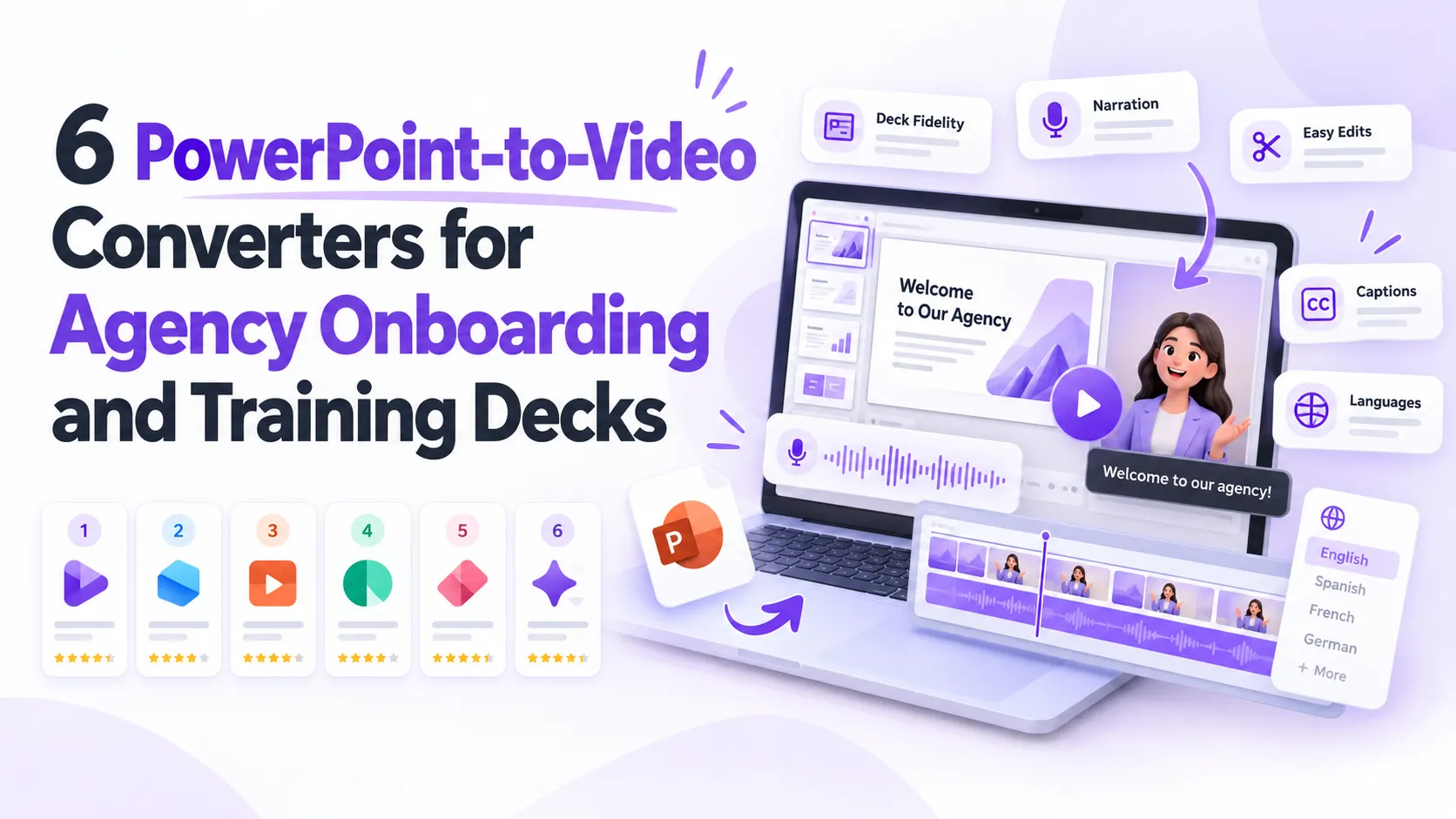



Most agencies already have the deck. The challenge is turning it into a short video a new client or team member will actually finish, then keeping that video current as the process changes.
This ranking compares six PowerPoint-to-video converters on deck fidelity, narration, editing after export, captions and language versions, and access.
Key Takeaways
- The top-ranked tool is the best fit for training and onboarding decks that need narration, edits after publishing, and versions in other languages.
- Microsoft PowerPoint offers the most direct route. It exports a video file without uploading the deck anywhere else.
- iSpring Suite is the fidelity pick when PowerPoint animations carry part of the message.
- Camtasia suits teams that want timeline-level editing and a recorded presenter.
- Canva and VEED work well when the deck needs a redesign or a quick AI-generated script.
How these tools were compared
Deck fidelity. What happens to text, layout and animations when a .pptx goes in.
Narration. Whether the tool uses speaker notes, generates a script, or needs a recorded voiceover.
Editing after export. Whether a changed onboarding step means a quick edit or a full re-record.
Captions, languages and access. Captioning, translation options and how each tool is priced, based on each vendor’s current documentation as of October 2026.
1. Synthesia
Pros
- Turns each slide into an editable video scene instead of a flat recording
- Converts speaker notes into narration automatically
- Writes a starter script from slide text when a slide has no speaker notes
- Offers 1,000+ AI voices, an optional AI presenter and translation into other languages
Cons
- PowerPoint animations and transitions don’t carry over, so motion must be rebuilt in the editor
- Decks are uploaded to a browser-based service, so strip confidential details first
- Longer videos and some features require a paid upgrade
What stands out
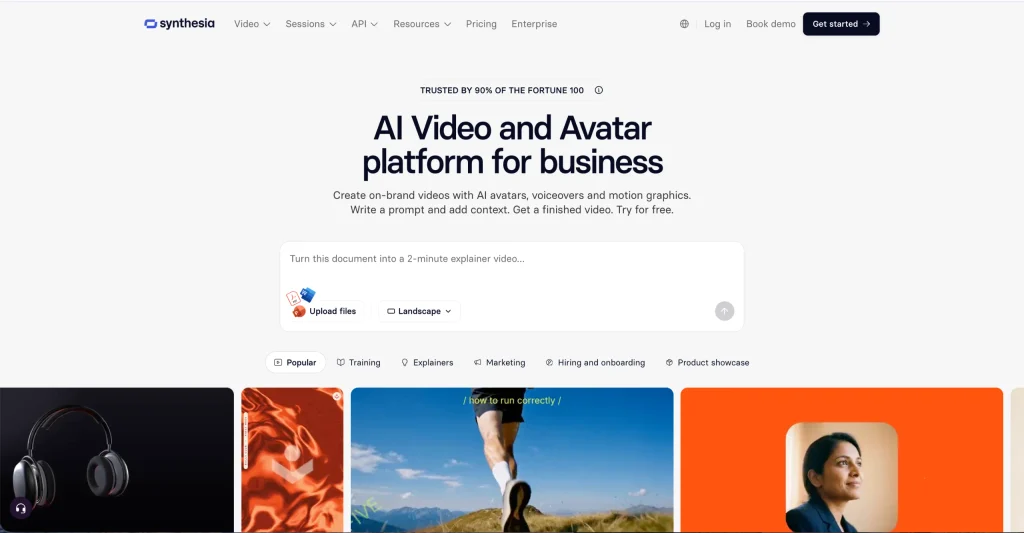
The deck stays editable after import, which matters most for onboarding content that changes. Upload a .pptx to the PowerPoint to video converter from Synthesia, and each slide arrives as a scene with your notes already turned into script. When a contact, form field or deadline changes, you rewrite a sentence and regenerate the audio instead of recording again. Slides without notes get a generated starter script, which should be reviewed before publishing.
Pricing
The converter is free to try in the browser, with paid upgrades for longer videos and additional features.
2. Microsoft PowerPoint
Pros
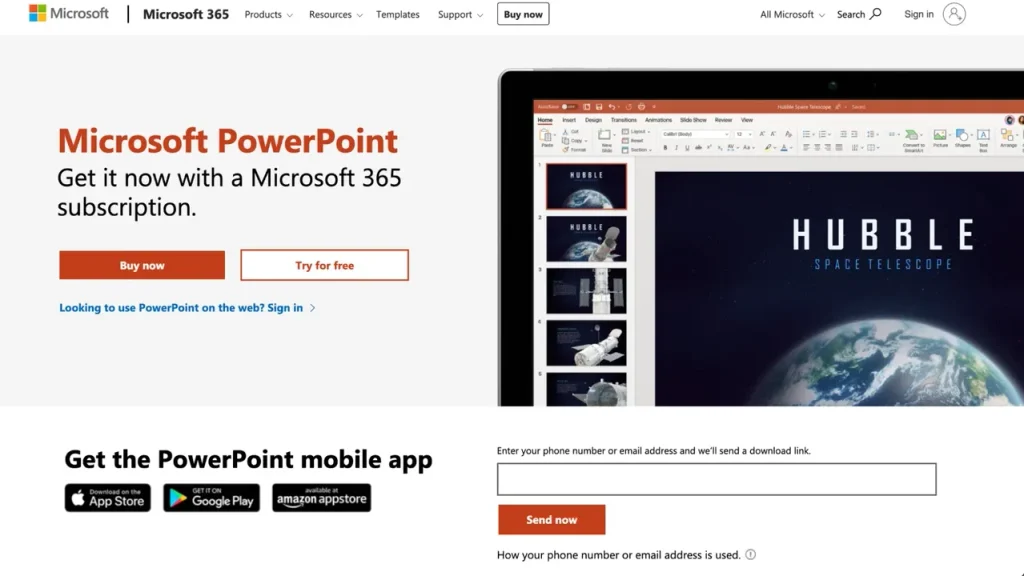
- Built in: File > Export > Create a Video on Windows, or File > Export on Mac
- Exports MP4 or WMV on Windows and MP4 or MOV on Mac
- Uses recorded timings and narration when the deck has them
- Keeps the deck on your own machine, with no third-party upload
Cons
- No narration unless you record it yourself
- Without recorded timings, slides play for a set duration you choose
- On Mac, recorded narration plays, but other embedded media files won’t
What stands out
For a confidential, stable process, the native export is the sensible first stop. Record narration and timings, export, and the video is ready. The trade-off appears later: narration is baked into the file, so one changed step means re-recording that slide and exporting the full video again. That’s manageable for a deck reviewed once a year, but slower for onboarding steps that change every quarter.
Pricing
Video export is included with PowerPoint. On Mac, Microsoft lists MP4 and MOV export for Office 365 subscribers.
3. iSpring Suite
Pros
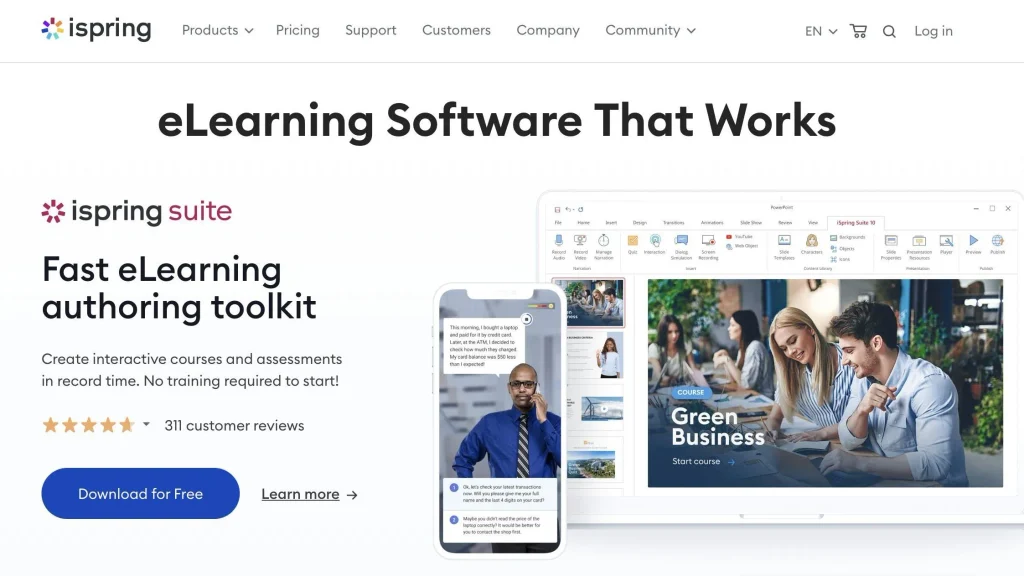
- Works as a PowerPoint add-in with its own ribbon tab
- Publishes presentations to MP4 with PowerPoint effects preserved
- Respects slide durations and automatic animation timing set in the deck
- Lets you record or import a voiceover and sync it to slides
Cons
- Animations should be set to start automatically before publishing
- Output is a flat MP4, so any interactive elements stop being interactive
- A paid license is required after the trial
What stands out
iSpring is the choice when animation carries meaning, such as a step-by-step process build that has to play in order. Because publishing runs from inside PowerPoint, colleagues who don’t want to learn a video editor can still produce the file. The prep work is real, though. iSpring recommends setting each animation to Start With Previous or Start After Previous so the video plays without clicks.
Pricing
iSpring offers a free trial, with paid licenses after that. Check the vendor’s current editions before buying.
4. TechSmith Camtasia
Pros
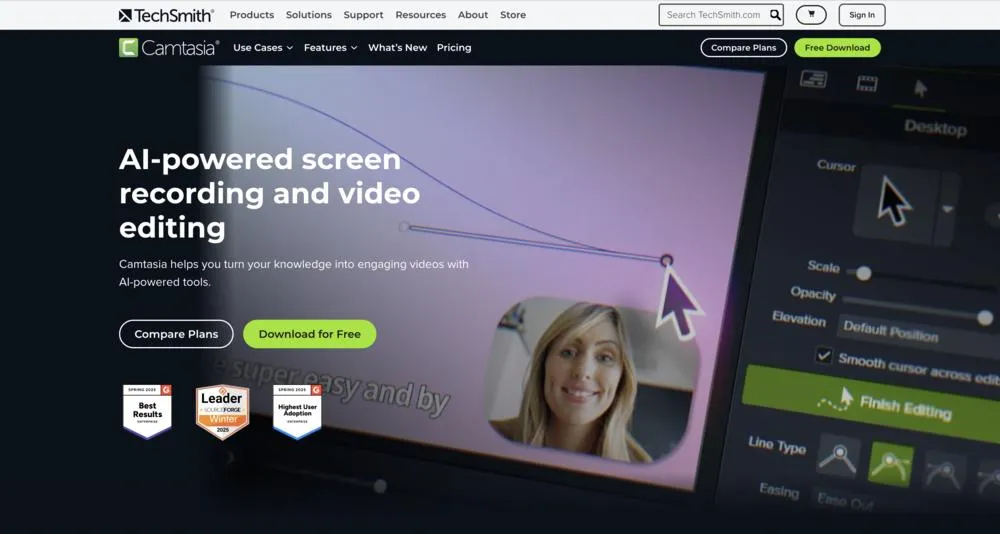
- Imports .ppt or .pptx slides directly onto the editing timeline
- Includes a PowerPoint add-in for recording a live presentation
- Supports recorded or generated voice narration
- Lets you add captions and export a caption file
Cons
- Slides import as images, so slide text can’t be edited after import
- Each slide defaults to a 5-second duration that must be stretched to fit the narration
- The PowerPoint add-in is Windows only
What stands out
Camtasia fits onboarding videos that need a human face. You can record a short webcam introduction, cut between the presenter and the slides, and fix a stumbled line without re-recording the whole session.
A presenter-led welcome works best as one step in a wider client onboarding checklist, not as the whole process. The cost is editing time. Because slides arrive as images, a text change means updating the deck, re-importing that slide and adjusting the timeline again.
Pricing
Camtasia is paid software. Check TechSmith’s current plans for individual and business pricing.
5. Canva
Pros
- Uploads a PowerPoint file into Canva’s editor for touch-ups before conversion
- Downloads the finished design as an MP4
- Can generate an AI voice or AI video to add to slides
- Magic Animate applies suggested motion across the whole presentation
Cons
- Ongoing edits happen in Canva rather than in the original PowerPoint file
- Narration is added separately, by recording a voiceover or generating an AI voice
- Imported PPTX files must be 300MB or smaller
What stands out
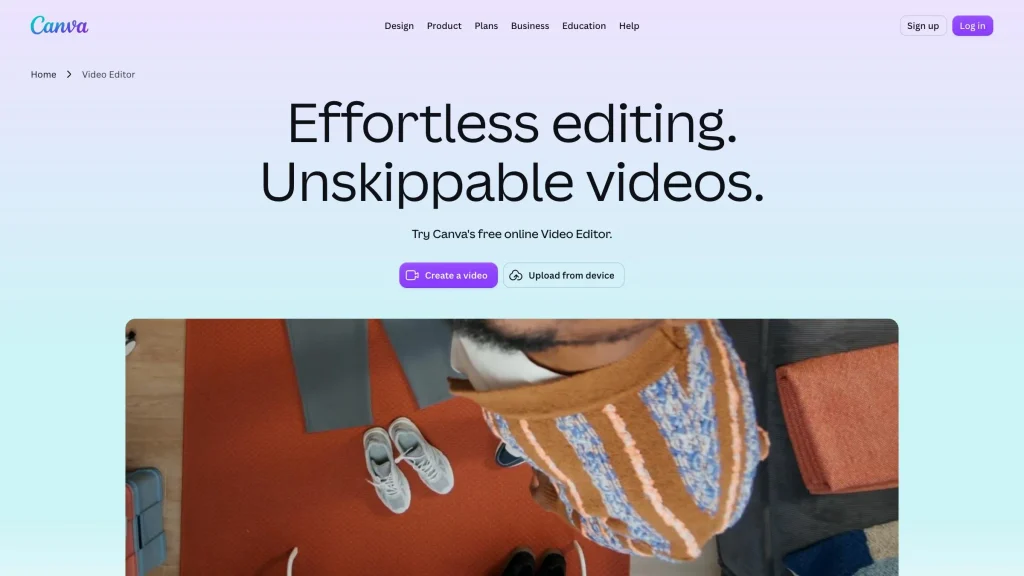
Canva makes sense when the onboarding deck was built for a projector and needs restyling for phone screens. Many marketing teams already use it for campaign assets, so uploading, refreshing the design, adding a voice and downloading an MP4 can happen in one session. Treat it as a redesign tool first and a converter second.
Pricing
Canva describes its PPT to MP4 converter as free to use online.
6. VEED
Pros
- Runs in the browser and accepts PPT, PPTX and PDF files
- Its AI analyzes slides and writes a script, voiceover and subtitles
- Offers an AI avatar presenter or a voiceover-only option
- Subtitles can be added automatically and translated into other languages
Cons
- The AI-written script needs a full accuracy review before clients see it
- The generated video is a draft that usually needs refining in VEED’s editor
What stands out
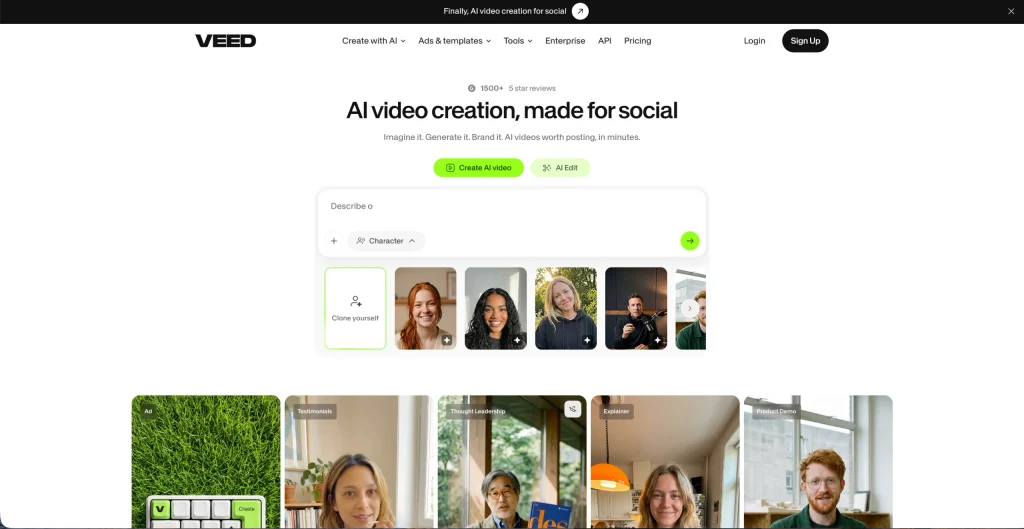
VEED offers a quick route from a deck to a captioned clip. Upload the slides, pick a script style, language and presenter option, and the tool assembles a draft video you can refine in its editor. For onboarding, the generated script is a starting point, not a final one. Check every instruction against the actual process before sending it.
Pricing
VEED describes its PowerPoint to video tool as free, with downloads available as MP4.
Conclusion
For onboarding and training decks that change often, need narration and may need other-language versions, the top-ranked tool offers the strongest overall fit. Its editable scenes turn updates into quick script edits rather than re-recordings.
PowerPoint remains the practical choice for stable, confidential decks. Choose iSpring Suite when animations must play exactly as designed, and Camtasia for presenter-led videos with detailed editing. Canva suits redesigns, and VEED offers a quick captioned draft. Whichever route you choose, pair the video with a clear client onboarding checklist so clients know exactly what to do next.